Showing posts with label Android. Show all posts

Monday, December 7, 2015

Motorola Moto 360 Watch Review

I purchased the Motorola Moto 360 (1st generation) watch a few months ago when it went on sale at a good price due to the arrival of the second generation Moto 360. The watch that I had been using (U8 Pro) stopped charging and I wanted an Android Wear watch. After a bit of research on the Motorola Moto 360 Android watch (and because of the sale price for the 1st generation), this was the watch I purchased.

You can easily tell the difference between the Moto 360 (first generation) watch with the Moto 360 (second generation watch). The most noticeable difference is that the button on the side of the watch for the first generation is exactly at the 90 degree mark whereas for the second generation, it is at approximately at the 45 degree mark. I don't have the second generation Moto 360 so can't really comment on it but after having the watch for approximately 3 months and having some spare time to devote to my blog writing, I thought that I would write my review/thoughts about the Motorola Moto 360 watch.

The Moto 360 watch's bottom portion of the screen is flat in what is commonly referred to on the internet as a flat tire. You can see this in the picture that I've included from their manual. Motorola calls this a "shelf" and according to them, it is used to hide various sensors including the proximity sensor. According to the reports that I've read, they do plan on eventually removing this "flat tire" but it is evident in both the first generation as well as the second generation Moto 360 watches. Removing the "shelf" according to them would mean a thicker or bigger watch. Personally, this "flat tire" bothered me a little bit at the beginning but after a few months, I don't fixate on it to the point where I even notice it.

One of the first things that I want to cover is battery life since most people will want to know about this. Based on my usage patterns (where the watch face is not illuminated until I receive notifications and I receive quite a few notifications every hour), the battery lasts for over 24 hours. I have never used the watch until the battery was exhausted so I don't know the exact time that it will last but based on my usage and estimate, I would say that it would probably last me approximately 32 to 36 hours or so. Since the watch didn't have any sleep monitoring software built into it (nor did I use it to track my sleep), I charged it every evening when I went to bed so the ~36 hour battery life didn't really inconvenience me.

The Moto 360 first generation watch comes with a wireless charging stand. The charging stand plugs into a standard microUSB charging cable. The watch charges very fast. It will take under 90 minutes to charge it to 100% (from the 20% range). While charging, the watch will display the time as well as what the percentage of charge on the watch.

The watch connects to an Android phone (I've connected it to my LG Nexus-4 and then later connected it to my OnePlus One) via bluetooth and handles the notifications very well. Please note that you can only connect the Moto 360 to one phone at a time and in order to connect it to another phone, it will require a factory reset of the watch. When it is out of Bluetooth range of the Android smartphone, it can also be set up to connect to a wireless network (WPA2-Enterprise is not supported) so that it can still receive notifications.

Set-up of the phone was very straight forward based on the on-screen instructions as well as using Motorola's Moto 360 manual. You can view Motorola's Moto 360 manual *HERE*.

What I like about the Moto 360 watch is that it gives me notifications for email, SMS, phone calls, as well as everything that would normally appear in the Notification bar of my Android device. I found it very convenient to read e-mails and SMS using my watch as opposed to pulling the phone from my pocket. Even though it notified me of phone calls, I found the notifications to be a bit weak so that sometimes I wouldn't notice that I had received a phone call until I looked at my watch.

The other thing I want to talk about is the heart rate sensor on the watch. I wear a Fitbit Charge HR and compared the heart rate results between it and the Moto 360 watch. I found that the Fitbit Charge HR was more accurate during higher intensity workouts than my Moto 360 watch. In terms of the number of steps, I also found that the 2 devices would give different readings. During my tests for short distances, they both had a relatively small difference in the number of steps shown but by the end of the day, the difference between the 2 devices was often times over 1000 steps.

Where applicable, applications which were installed on my Android phone automatically installed the Android Wear component onto the Motorola Moto 360 watch when I first linked/synched the 2 items together.

I've been happy with my Motorola Moto 360 watch so far and don't have any issues recommending this watch to anyone if they want to receive smartphone notifications on their watch.

If you have any comments/questions regarding this blog entry, please don't hesitate to leave a comment in the comments section below. Please note that the comments are moderated and any comment containing a URL link (whether embedded or not) will automatically be flagged as spam and will not be posted.

Monday, November 23, 2015

Blackberry Priv Initial Thoughts

I haven't written a blog entry for quite awhile and thought that I would try to restart my blog entries with the newest smartphone that I tried which is the Blackberry Priv. This will be one blog entry among many regarding my thoughts/feelings about the Blackberry Priv as I continue to use it.

In terms of the specifications for the phone, I will summarize it briefly (all of this taken from Blackberry's website *HERE*) but it has a 5.4" diagonal screen size at a 16:9 aspect ration. The resolution is 2560 x 1440 with 24-bit color depth at 540PPI. It has an 18MP autofocus rear camera capable of 4K recordings at 30fps or HD 1080p recordings at 60fps and a 2 MP front camera capable of 720p HD video recording. The version that I have/tested PRIV-1 (US model) comes with wireless charging (the Canadian model PRIV-3) does not come with wireless charging. For the processor specs, the Blackberry Priv comes with a Qualcomm 8992 Snapdragon 808 Hexa-Core, 64 bit Adreno 418, 600MHz GPU. For the memory, it comes 3GB of RAM and 32GB of Flash memory. It also supports expandable memory via the microSD slot (up to 2 TB). For the SIM card size, it uses the nanoSIM card format.

In terms of what makes this phone unique, it is that it is a Blackberry running Android OS and not the proprietary OS that Blackberry makes which is Blackberry 10. Out of the box, the version of Android is 5.1.1. For Android lovers, what makes this phone unique is that it has a built-in sliding keyboard and that has some PRIVacy features built into the phone.


I am one of the unique people who will generally carry around both a Blackberry phone and an Android phone at the same time. Prior to getting my hands on the Blackberry Priv, the phones that I would have with me were my Blackberry Passport and my OnePlus One (or my LG Nexus-4). In terms of Blackberry devices, I've had/used a Blackberry Bold 9700, a Blackberry Q10, and a Blackberry Passport. In terms of Android devices, I've had/used a Sony Ericsson X10 Mini, a Samsung Nexus-S, an LG Nexus-4, and a OnePlus One. I would generally swap between Android devices but keep my Blackberry phone with me since I generally type out very long e-mails and I've just never gotten comfortable using the onscreen keyboards from the various different phones.

In terms of the "flavour" of Android on the Blackberry Priv, it looks/feels like Google stock Android except for a few applications like Yahoo Finance, Blackberry Hub, BBM, and DTEK. The Blackberry Priv also uses Blackberry's own version of Calendar and Contacts.

You can see Blackberry's video introducing the Blackberry Priv on the YouTube video below:


You can also see Blackberry's very nice & artistic promotional video on their Blackberry Priv below.

When I first opened the box and configured the Blackberry Priv, I tested using the transfer of information from my LG Nexus-4 to my Blackberry Priv using NFC but because I had a lot of Android apps on my LG Nexus-4, I stopped it midway while it was downloading my Android apps onto the phone. However, prior to doing this, I noticed that the phone was somewhat hot. Up until that point, my phone was downloading a lot of Android apps from the Google Play store via WiFi after I used the NFC connection/configuration option for the initial configuration.

I decided to do a factory reset of the Blackberry Priv and this time instead of using the NFC connection, I selected my OnePlus One as the phone to base my Blackberry Priv's installation and then I manually selected the applications from the list of applications which were installed on my OnePlus One. After doing this, I later decided that it would probably be better for me to do a factory reset again and this time configure the device as a brand new device and then manually go into the Google Play store in order to download the apps that I wanted. This was my final set-up for the Blackberry Priv and was the starting point that I decided to keep.

After installing a few of the Google apps that I was sure that I wanted on the device (ex: Netflix, Bell TV, NFB, Kodi, TMN Go, Crave TV, and the Amazon Apps Store), I powered off my Blackberry Priv and decided to let it charge to 100%.

When the battery was at 100%, I powered my Blackberry Priv back on and tested out Netflix and it worked very well. I watched an entire 30 minute television episode and the earlier issue that I had with my Blackberry Priv getting unusually hot when I was initially installing applications on it was not as noticeable but I still noticed the phone being warmer than it was initially prior to me streaming the video. I then tested out YouTube and this also worked very well.

In terms of the keyboard on the Blackberry Priv, after having used my Blackberry Passport keyboard for ~1 year, I found the keys on the Blackberry Priv to be somewhat small but I didn't have any problems typing with the Blackberry Priv's keyboard. I liked being able to access the numbers via the physical keyboard as I had done with my Blackberry Bold 9700 or my Blackberry Q10. I also liked that just like on the Blackberry Passport, the Blackberry Priv's keyboard is touch sensitive and can be used like a trackpad. You can use it to scroll through webpages or scroll through documents or even the Android's home screen. In terms of using the keyboard, I did find that because of the sliding nature of the keyboard with the shape/size of the phone, it was a bit "top heavy" but it wasn't uncomfortable for me to type a relatively long e-mail to a colleague.

The screen is slightly curved (it has curved sides) and although this looks very nice, as someone who likes to put a "tempered glass screen protector" on most devices, I think it will be difficult to find a tempered glass screen protector that either covers the entire screen (including the curved edges) or the tempered glass will be more expensive than typical tempered glass smartphone screen protectors that have a completely flat screen.

I've only been using the Blackberry Priv for under 1 week while I wait for my orders of a microSD card, a nanoSIM card (to replace the microSIM card that I was using in my OnePlus One or my LG Nexus-4), a tempered glass screen protector, and a case to arrive (before I fully switch over). So far, during the week that I've had the Blackberry Priv, I've been enjoying it. The Android apps that I enjoy using work seamlessly on the Blackberry Priv. I like having a physical keyboard that I can use to type out long emails. If I don't want to use the physical keyboard, I can also use the onscreen virtual keyboard when it is more convenient.

If you have any comments/questions regarding this blog entry, please don't hesitate to leave a comment in the comments section below. Please note that the comments are moderated and any comment containing a URL link (whether embedded or not) will automatically be flagged as spam and will not be posted.

Monday, January 5, 2015

Android 5.0.1 Available for the LG Nexus-4

With the annoying problem that I was having with my LG Nexus-4 after the upgrade to Android 5.0 (Lollipop), I was glad to have received the prompt informing me that Android 5.0.1 was available for my device. I was hoping that it would fix the annoying problem where after a few hours of non-use (typically after I woke up), my Nexus-4 would be in a frozen like state where I could not turn on the phone or power on the screen using the power button.

The update took about 1 hour for me to download and apply. As mentioned in my earlier post *HERE* my LG Nexus-4 is encrypted so the upgrade time might be shorter on a non-encrypted Android device.

After applying the update and rebooting, my phone appeared to behave normally but the big test would come after leaving my phone unattended for a few hours to see it would become frozen again. As mentioned in my earlier blog post, my LG Nexus-4 never froze prior to me installing Lollipop on it. The morning after I updated my Nexus-4 to Android 5.0.1, my phone was not frozen and I was able to quickly turn on the screen by pushing the power button. I thought that the annoying frozen issue that I experienced was fixed with the Android 5.0.1 update. However, after using my phone for a few days now with Android 5.0.1, the frozen issue has not really gone away. It still appears to happen randomly overnight were sometimes when I wake up in the morning, I'm able to turn on the screen quickly by pushing the power button while other times, my phone is in a frozen-like state where I have to hold the power button to forcibly turn it off and then wait a few seconds before pushing the power button again to power on the phone.


I spoke with a friend who also has an LG Nexus-4 and he informed me hasn't frozen up on him even after he updated to Lollipop which makes us believe that it might be an incompatible app on my Nexus-4. However, currently, I don't really feel like reinitializing my phone back to factory defaults and then reinstalling my Android applications one at a time. When I fully migrate/use my OnePlus One and retire my Nexus-4 to a "testing" phone, I'll probably be more likely to reinitialize my Nexus-4. In the meanwhile, I'm alternating between my OnePlus One and my LG Nexus-4 when I need/use an Android phone.

If you have any comments/questions regarding this blog entry, please don't hesitate to leave a comment in the comments section below. Please note that the comments are moderated and any comment containing a URL link (whether embedded or not) will automatically be flagged as spam and will not be posted.

Monday, December 22, 2014

Android 5.0 Available for LG Nexus-4

A few weeks ago, I received the prompt on my LG Nexus-4 informing me that there was a system update available for it (Android 5.0 / Lollipop).

One of the reasons I've purchased the Nexus line of products is because they are the first devices to get new system updates. Although my LG Nexus-4 was over 2 years old, I was glad that it was still slated to get Android 5.0 (Lollipop) when Lollipop was first announced.

For information about Lollipop, you can refer to the official website *HERE*. The 2 things that were of interest to me was mainly the improved battery life and the improved notifications. The battery life of my LG Nexus-4 was still very good and it could stay on standby with WiFi activated for over 24 hours between charges but not having to charge it as often is always something that I look for especially during those times when I am not able to charge my phone easily.


The update as mentioned in the above image requires a minimum of 500MB free on the device. I had a little over 1GB of space free on my LG Nexus-4 before going ahead with the upgrade and didn't experience any issues during the upgrade.

The upgrade process took me a little over 1 hour. My LG Nexus-4 had encryption on which might have increased the upgrade installation time. Personally, if upgrading, I would recommend planning not to have the use of the device for ~2 hours (depending on download speed).

After the upgrade, I noticed that a few of my applications were not Lollipop compatible (such as BT Notification application that came with the U8 Pro or UPro1 smartwatch). With the non-compatible applications, I removed them from my Nexus-4. Something else that I noticed after the upgrade was that for some reason, when I woke up in the morning, my LG Nexus-4 would be in a "frozen" state. When it was in this state, I could not get the screen to activate and would need to power off my device, wait a few seconds, and then power it back on again. The weird thing is that during the rest of the day, my phone would never go into this "frozen" state. It was only after I woke up that I wasn't able to power on the screen and it was also not something that happened every morning.

Prior to upgrading to Android 5.0, the Google Voice search on my Nexus-4 ("OK Google" search commands) worked seamlessly. However, after upgrading to Android 5.0, the "OK Google" search commands were more problematic.

One of the things that I noticed about Android 5.0 was that the phone could be unencrypted when powered on by using the pattern method. Prior to Android 5.0, the pattern method was not an option to encrypt/unencrypt the phone.

In terms of whether I'm happy with Android 5.0 on my LG Nexus-4, I would say that because my phone would randomly be "frozen" when I woke up, I can't really recommend people upgrading to Android 5.0 (although some of my friends who have upgraded to Android 5.0 didn't have the same issue as I experienced). Also, because I am using a U8 Pro or UPro1 smartwatch which relies heavily on the old Android notification system (and isn't compatible with the newer Android 5.0 notification system), Android 5.0 does limit some of the smartwatch's features which rely on the BT Notification app.

If you have any comments/questions regarding this blog entry, please don't hesitate to leave a comment in the comments section below. Please note that the comments are moderated and any comment containing a URL link (whether embedded or not) will automatically be flagged as spam and will not be posted.

Monday, December 8, 2014

U8 Pro (U8Pro or UPro1 or U Pro1) Smartwatch Review

I purchased a U8 Pro Smartwatch a few weeks ago. Based on my research, this watch is also sometimes advertised as a U Pro Smartwatch.

I was interested in something that would alert me in real time about calls that I was receiving on my smartphone since I often miss calls when my smartphone is either in my backpack or in my pocket and I either don't hear the ringing or feel the vibration from an incoming call until it is too late.

I considered getting a bracelet that would alert me of incoming calls but since the cost between one of the bracelets and a U8 Pro or U8 Smartwatch wasn't that much, I opted to go with the smartwatch. The main difference between the U8 Smartwatch and the U8 Pro Smartwatch (which is what I purchased) is that the U8 Pro Smartwatch will also work independently as a cellphone. Since the price difference between the U8 Smartwatch and the U8 Pro Smartwatch was under/roughly $10, I opted just to get the U8 Pro Smartwatch. In order for the U8 Pro Smartwatch to function independently as a cellphone, it requires a miniSIM card which is inserted into the watch underneath the battery.


The U8 Pro Smartwatch has the following features/icons: Call (which allows you either to make calls when connected via bluetooth to a smartphone or make calls if you have an active miniSIM card inserted into the watch), Messaging (which allows you to send text messages either independently if using a minSIM card in the watch or send text messages when connected via bluetooth to a smartphone), Phonebook (which shows you the local/watch's phone numbers or the phone numbers on your smartphone via bluetooth), Call History (shows you the watch's call history or the call history of your smartphone), Image Viewer (views the images taken using the smartwatch), FM radio (allows you to listen to FM radio as long as you use the included earphones which also function as an FM antenna), Audio Player (which allows you to listen to the music from your smartphone), Camera (which allows you to take pictures with the smartwatch), Alarm (allows you to set alarms), Stopwatch (pretty self-explanatory), Settings (which allows you different sound profile settings and configure some of the independent phone features of the watch), Bluetooth (to connect to your smartphone), Notice (to get notifications from your smartphone sent to your smartwatch), Anti-Lost (alerts you when you are away from your smartphone), Pedometer (estimates the number of steps that you've walked), Personal (allows you to set personal data for a more accurate pedometer calorie display), Car Theft (I'm not sure what this does), Find Phone (I'm not sure what this does since it didn't work with my smartphone), Remote Capture (allows you to use your watch to take a picture remotely on your smartphone), and Sleep Monitor (monitors your sleep patterns). Some of these features will only work with Android phones such as the Remote Capture and the Notice applications since they require an Android application to be installed/configured on your Android smartphone.

Even though the U8 Pro Smartwatch will work with almost all bluetooth enabled smartphones, in order to get the full functionality of the device, you will need to have an Android smartphone since some of the features will require the BT Notifier application to be installed on the phone. The instructions that came with U8 Pro Smartphone aren't very good to say the least. It makes mention of downloading a mode.apk file from ftp://221.231.140.226 with the username "uwatch" and the password "good123". However, the QR code that is produced on the watch when trying to use a feature which requires the application to be installed on an Android phone is:


I've used the above application *HERE* as well as the 2 files that I obtained from the above FTP site *HERE* and *HERE* and all of these Android applications work relatively well with the smartwatch. I also tried using the application on the Google Play Store called "Mediatek SmartDevice" with relatively good results as well.

In terms of the functionality of the smartwatch, I find that it works relatively well. The notifier application on the smartwatch will notify me of Facebook posts, Android BBM messages, e-mails, and any other Android application which uses the standard Android notification area on the upper left corner of the Android phone. The watch will notify me via a vibration and/or a sound. The amount of information that is received on the watch varies but in most cases, I found it lacking and I needed to use my Android phone to see what exactly the particular notification was regarding in detail. The reason for this is that depending on the notification APK program that I was using on my Android phone, I was either presented with 1 line on the watch showing me the name of the application that I was receiving a notification or sometimes 2 lines showing me the name of the application as well as the sender of the message. Also, a lot of the smartwatch's applications which depend on the Bluetooth Notification APK file on the Android phone will work sometimes or will not work at all. For example, when I got the Remote Camera feature to work properly, a few hours later, it would not longer work. I could get it to work again by rebooting my smartwatch but during times that I might want to use the Remote Camera capability, having to reboot the smartwatch before doing so is a nuisance. Most of my testing was on my LG Nexus-4 running stock Android 4.4.4. After upgrading my LG Nexus-4 to Lollipop (Android 5),  the smartwatch's features which depended on the BT Notification app no longer worked (ex: Remote Capture) and the smartwatch notifications became limited to only phone calls and SMS (it no longer would notify me of e-mails, Facebook posts, Android BBM messages, etc.)

One of the things that I didn't really like about the smartwatch was that in order to see the time when the watch's touchscreen was off, I would have to push the button on the side of the watch. I discovered that it would turn on if I turned the Pedometer function on when I abruptly moved my hand in a fashion similar to me trying to look at the time but this only worked approximately 50% of the time.

I tested the Pedometer function of the smartwatch and it seemed to be relatively accurate. It calculated the steps that I took and the moment I stopped, the number of steps didn't increase. I also tested the Sleep Monitor but I'm not sure how accurate it was since when I kept it on during a 24 hour period, during part of the day that I was at work sitting in front of my computer and typing, according to the chart on the smartwatch, it mentioned that I was in a "light sleep" mode.

The watch has 4 faces in order to tell the time which you can easily toggle through.

When the smartwatch is linked to my Android phone, all the sound produced by my Android phone was relayed to my smartwatch similar to my smartwatch functioning like cordless/wireless speakers.

In terms of battery life, I find that based on my usage, the watch lasted for over 24 hours. Of course this will depend on how often you receive notifications on the smartwatch and how often you check your notifications on the smartwatch. I generally will turn off the bluetooth function on my smartwatch in the evening to preserve the battery since I don't want to be notified of things like Facebook messages while I sleep.

I find that the vibration is noticeable on my wrist when I receive a phone call. I mainly purchased this smartwatch in order to be notified of phone calls and it does this well. The other features are a bit of a hit-and-miss.

If you have any comments/questions regarding this blog entry, please don't hesitate to leave a comment in the comments section below. Please note that the comments are moderated and any comment containing a URL link (whether embedded or not) will automatically be flagged as spam and will not be posted.

Monday, November 17, 2014

Kobo Arc 64GB Review

I purchased a Kobo Arc 64GB tablet when it was on sale about a month ago in order to replace my old Acer Iconia Tab A100 Android that stopped working.

I thought that I would review the product after using it for over one month.

The Kobo Arc sports a 64GB storage capacity and has a 1.5 GHz dual-core processor. It comes with Android 4.1 Jelly Bean operating system,
7-inch colour LCD touchscreen with 1280 x 800 HD resolution, integrated Wi-Fi, and of course USB connectivity.

What I like about the Kobo Arc is that it is relatively fast or at least faster than my old Acer Iconia Tab A100 tablet. It is dual-core so is not as fast and as responsive as some of the other Android tablets that are now quad-core but I still find it relatively responsive. What I like about the 64GB storage capacity is that this capacity (unlike how the Acer Iconia Tab A100 tablet was configured) is not partitioned to appear as external storage and internal storage. What this means is if you're like me where you install a lot of Android applications and don't store a lot of pictures, videos, documents, and music, you are free to use up most of the 64GB on Android applications. For example, on my old Samsung Nexus-S, I have over 4GB of free space left but did not have enough room to install any Android applications because I had already used almost all of the portion of space required for the Android applications. With my newer LG Nexus-4, I could use almost all of the storage space to install the many Android applications that I wanted to use or test without any issues.

One of the first applications that I installed on my Kobo Arc was XBMC (which is now called Kodi and the software can be downloaded from http://kodi.tv/download/). I find the XBMC works very well on it. It would not work on my Acer Iconia Tablet for some reason.

Another application that I installed on it was Netflix and I find that the videos look very nice on the Kobo Arc.

One of the things that I didn't really like was that a lot of applications from the Google Play store that I use regularly were listed as incompatible on the Kobo Arc. For example, most of my banking applications could not be installed from the Google Play store including PayPal nor could the Bell TV application that I sometimes use to watch television shows/episodes. With Android, it is relatively easy to install "incompatible" applications so this is the route that I took for those applications that I wanted to have on my Kobo Arc.

Another negative about this Android tablet is that the built-in encryption feature doesn't work. I like to encrypt almost all my devices as a security measure in case of loss and even though the Kobo Arc has the encryption option within the standard Android Settings menu, it doesn't seem to work. I will allow you to go through the steps of encryption without displaying any error messages but it won't do anything.

I wanted a replacement Android tablet mainly for reading and for watching videos. In terms of the tablet's ability to display the Kobo books that I have, I found it to be relatively responsive in terms of turning the pages and how fast it would display the pages. It was definitely faster than how my Kobo Mini would display the pages or turn to the next page. I use my Kobo Arc for reading newspapers and PDF books. Since you can install Adobe Reader on the Kobo Arc (it is afterall an Android tablet), it does a lot better job at displaying and rendering the PDF books than my old Kobo Mini.

I like the fact that the charging port (unlike the proprietary charging port that my Acer tablet used) is a standard microUSB port.

I am not to crazy about the homepage/skin of the Kobo Arc. It is called Tapestries. You can see a YouTube video on Tapestries *HERE* on YouTube or use the video located below.


If you are interested in the Kobo Arc User Guide in PDF format, you can also download it *HERE* or from the company's own website *HERE*.

If you can get the Kobo Arc on sale at a good price, I have no problems recommending it.

If you have any questions/comments regarding this blog entry, please don't hesitate to leave a comment in the comments section. Please note that comments are moderated and any comment that contains an embedded URL link will be flagged as being spam and will not be posted.

Monday, October 13, 2014

OnePlus One OTA CyanogenMod Update to XNPH38R

After having my OnePlus One for ~1 week, I noticed an OTA (over the air) update was available for CyanogenMod earlier this week.

I decided to update it to see what the process was like as well as how it behaves after the update. Considering I still haven't really played with my OnePlus One for a long time (I only had it ~1 week and was still using mainly my LG Nexus-4 as my Android phone), I didn't really notice any issues with it prior to the update. That being said, generally when there are OTA updates for my devices, I will update them.

The update happened very seamlessly. After clicking on the "Install update", the phone rebooted and the update was applied immediately. I'm not sure if it was because my phone was encrypted via the security settings but the boot up seemed to take longer than usual so I powered off my phone and then repowered it back on. The phone powered on without any issues when I did this.

I then tested my OnePlus One briefly to see if it worked properly and based on the things that I tested worked without any issues.

If you have any comments/questions regarding this blog entry, please don't hesitate to leave a comment in the comments section below. Please note that the comments are moderated and any comment containing a URL link (whether embedded or not) will automatically be flagged as spam and will not be posted.

Monday, October 6, 2014

OnePlus One Purchasing Experience and Unboxing

I apologize for not having written a blog entry in close to 3 months since I've been busy with some other things and mainly write my blog reviews as a hobby and because writing and technology are 2 of my passions.

Although I've purchased/received many items that I could write about, I'll start with the latest technology gadget that I recently purchased. This would be the "exclusive" OnePlus One mobile Android smartphone.

I ordered it on Monday September 29, 2014 after receiving a random invitation from the company and was a bit hesitant on whether to purchase it or wait for the next Nexus version. As it turns out, a co-worker had offered me an invite the week previously on Friday but informed me that if I wasn't 100% sure that I would purchase it, he wanted to know so he could give it to someone else. Since I wasn't 100% sure that I wanted it (I was thinking of getting the next Nexus phone), I informed him that it might be best if he were to give his invite to someone else.

I didn't get the HTC Nexus-One but purchased the Samsung Nexus-S, skipped the Samsung Nexus Galaxy, got the LG Nexus-4, skipped the LG Nexus-5, and I was planning on getting the next Nexus version but it hasn't been announced yet. Because I probably wouldn't get another invitation to purchase the OnePlus One, I decided to redeem my invitation and ordered the OnePlus One when I arrived home from work on Monday September 29.

For those of you unfamiliar with the OnePlus One purchasing method, I'll just cover it briefly here. First of all, the reason that I wrote that the OnePlus One was an "exclusive" phone was because unlike most other phones where a customer can just purchase a phone given the amount of stock available at a retailer, someone wanting to purchase a OnePlus One must be invited to purchase it. Even after being invited to purchase it, he/she must purchase it within 24 hours of the invitation since the invitation expires. Also, in order to purchase the OnePlus One, the customer must create an account on the OnePlus One website as well as have a PayPal account since at the time of me writing this blog post, PayPal is the only accepted method of payment however OnePlus One will ship the phone to an address that isn't verified (I shipped it to my work address which isn't listed on my PayPal account).

The invitation marketing method is similar to how Google first distributed their Gmail and GoogleVoice accounts. If I were to want to purchase the latest 2 phones (Blackberry Passport and iPhone 6) available now, I can basically pre-order it from my carrier or I can purchase these phones from one of the retailers who sell them. With the OnePlus One, excluding purchasing it second hand, you can only purchase it from their website and in order to purchase it from their website, you must be invited to purchase it either by randomly being selected by the company or being invited by someone who already purchased it.

I was surprised how fast I received the OnePlus One after working it late on Monday September 29 (~10:00PM EDT). Because I knew that I would have to pay taxes/duties/customs/brokerage fees, I opted to send the item to my place of work as opposed to sending it to my place. On the OnePlus One website, it showed the "Processing" status the following day on Tuesday, September 30 and then on Wednesday, October 1, the item shipped from Los Angeles. I received it in Montreal during my lunch on Thursday October 2 at work at ~1:58PM where I left the fees after having received a phone call from the courier company (DHL) informing me what the fees would be after it passed through Canadian customs.


I didn't open bubble-wrap envelope before getting home but after opening it, there were 2 boxes; one small OnePlus One labeled box and another brown cardboard coloured box.


When I opened the brown cardboard coloured box at home as well as the small OnePlus One labeled box, I saw that the small OnePlus One labeled box contained the AC USB adapter plug and the brown cardboard coloured box contained a large OnePlus One labeled box. I believe that within the smaller white OnePlus One box, there was also a nanoSIM card adapter/tray. I was a bit curious on what the nanoSIM card adapter/tray was used for but when I ejected the OnePlus One SIM card tray and saw that it was a microSIM card tray, it was quite obvious that the nanoSIM card adapter/tray are for those users who have a nanoSIM. Instead of having to purchase a microSIM to nanoSIM converter, the included nanoSIM card adapter/tray is used directly instead of using the microSIM card adapter/tray that was already in the phone. This is ingenious and I wish most manufacturers included a different tray for at least the 2-3 common sized SIM cards for their phones without having to resort to an adapter.


Opening up the large OnePlus One labeled box, I found the OnePlus One phone. Underneath the white board that the phone sat on, was the USB cable as well as the SIM extraction tool.


It will take me a few days/weeks of using my new OnePlus One phone in order to write my review/thoughts about it but the phone is noticeably larger than my LG Nexus-4 and in terms of responsiveness/speed, I find it to be quite fast and responsive. After opening the box on Thursday evening after work, because I arrived home late, I didn't really "play" with my new technology gadget but charged it for the entire evening and after work on Friday I spent most of my time configuring it as well as installing/customizing the Android applications on it.

You can get some information of the OnePlus One from the keynote document either from the company's own website *HERE* or from my blog *HERE*.

If you have any comments/questions regarding this blog entry, please don't hesitate to leave a comment in the comments section below. Please note that the comments are moderated and any comment containing a URL link (whether embedded or not) will automatically be flagged as spam and will not be posted.

Monday, August 11, 2014

Downloading and Installing Android applications onto Blackberry 10 Devices using Amazon AppStore

There are a few ways to install Android applications onto a Blackberry 10 device. I detailed one of those methods previously *HERE* and thought that I would mention another way which some people may find slightly easier to install Android applications onto their Blackberry 10 device and that is to use the Amazon App Store.

The Amazon App Store contains most of the applications that you can find in the Google App Store and getting the Amazon Appstore onto a Blackberry device is a relatively simple process.

The first thing that it involves is to change the settings to allow for the installation of applications from sources other than Blackberry World. To do this, you will need to go into Settings -> App Manager -> Installing Apps and then turn on the option to "Allow Apps from Other Sources to be Installed."

After doing this, you can then download the Amazon Appstore from Amazon's official site *HERE*. After downloading it, you will then need to select the AmazonApps-release.apk file from your Downloads and then click on the "Open" button


The program will then install onto your Blackberry 10 device.

After it finishes installing, you will need to configure the Amazon Appstore to your Amazon account (or create an Amazon account). For me, I already had an Amazon account since I purchased books in the past from Amazon so I used those credentials to sign into the Amazon Appstore. After doing this, I received a message about needing to configure my address on my Amazon account so I logged into my Amazon account on my computer and I had to manually configure my address to accept Amazon Appstore (I believe that this setting is in the section "Manage Addressbook").

After doing this, I was able to download my first free application. As a test, I did a search for the popular Netflix app and I managed to find it and download it onto my Blackberry Q10. Even though I already had Netflix on my Blackberry Q10, I didn't get any error messages when trying to download and install Netflix from the Amazon Appstore.

After installing it, I received an automated e-mail indicating that I purchased Netflix from the Amazon Appstore and when checking my Orders on my Amazon account on the Amazon website, it shows that I purchased Netflix


As I mentioned in my previous blog entry on how to manually install APK files onto a Blackberry 10 device (for that blog entry you can refer *HERE*), there is another method of installing APK files using a program called "Snap." Installing Snap onto a Blackberry 10 device is a bit more complicated which is why I decided to write this blog entry about using Amazon Appstore to get the desired Android APK app file onto a Blackberry 10 device. The program "Snap" gets it's application listings/downloads from the Google Play Store. I will try to detail how to get "Snap" onto a Blackberry 10 device but since I did it a few months ago, any instructions that I may post on a blog entry might not be 100% accurate (but should point you in the correct direction).

Getting an APK file from a reliable source like from Amazon Appstore is better then searching on Google to try to find the APK file and then manually installing it onto your Blackberry 10 device (or your Android device) since you don't know whether these APK files were modified and aren't the same as the files available from either the Amazon Appstore or the Google Play Store.

If you have any comments/questions regarding this blog entry, please don't hesitate to leave a comment in the comments section below. Please note that the comments are moderated and any comment containing a URL link (whether embedded or not) will automatically be flagged as spam and will not be posted.

Tuesday, July 8, 2014

Android 4.4.4 Available for LG Nexus-4

After updating my LG Nexus-4 to Android 4.4.3, a few weeks later, I received another notification on my LG Nexus-4 informing me that there was a new system update available. The update that was available was Android 4.4.4.

The updating to 4.4.4 was roughly the same steps as when I updated my LG Nexus-4 to Android 4.4.3. After clicking on the "Restart & install," my Nexus-4 rebooted and began the upgrade/installation from 4.4.3 to 4.4.4.

After the updating process completed, my Nexus-4 rebooted automatically and because my Nexus-4 is encrypted, I was presented with the prompt asking me to enter my decryption password. When I entered my decryption password, my Nexus-4 continued to start and my Nexus-4 was updated successfully to Android 4.4.4.


After my Nexus-4 was updated, I tested Android 4.4.4 briefly and all the applications that I had installed on my Nexus-4 and used on a regular basis started without any issues. In terms of any noticeable changes, I didn't notice any difference between 4.4.3 and 4.4.4 in such important things as wireless strength or battery life.

If you have any comments/questions regarding this blog entry, please don't hesitate to leave a comment in the comments section below. Please note that the comments are moderated and any comment containing a URL link (whether embedded or not) will automatically be flagged as spam and will not be posted.

Tuesday, June 24, 2014

Android 4.4.3 Available for LG Nexus-4

A few weeks ago, I received a prompt on the upper right corner of my LG Nexus-4 screen informing me that there was a system update available. I decided to update my LG Nexus-4 with the new system update.

Since I already had Android 4.4 on my LG Nexus-4, I wasn't expecting anything dramatic with this update to 4.4.3.

The entire update process took approximately 20 minutes. Since my LG Nexus-4 was encrypted based on the system settings, your update process will probably be shorter.

When I went to the system update screen, I was presented with the following screen:

Selecting the "Restart & install" initiated the installation process which comprised of a restart of my system where I obtained the following screens:


After the above screen finished, my LG Nexus-4 rebooted and I was prompted for my decrypt password. When I entered my decrypt password, the rebooting continued. When my LG Nexus-4 fully rebooted/restarted, I checked the system settings to see that I now had 4.4.3 on my LG Nexus 4.


If you have any comments/questions regarding this blog entry, please don't hesitate to leave a comment in the comments section below. Please note that the comments are moderated and any comment containing a URL link (whether embedded or not) will automatically be flagged as spam and will not be posted.


Monday, February 10, 2014

Manually Installing Android Applications on a Blackberry 10 Device running v10.2.1.537

After upgrading my Blackberry Q10 to v10.2.1.537 (see my previous blog entry), I decided to install some of my favourite Android applications onto it now that I no longer had to convert these Android APK files into BAR files in order to sideload it onto my Blackberry 10 device.

Since I have a few Android devices, it was a somewhat simple process for me to get the APK files that I wanted onto my Blackberry Q10. For me, I used Dropbox in order to get the APK file to my Blackberry since my Blackberry Q10 has Dropbox capability built-in but you can also download the APK files directly from a website or e-mail them to yourself once you have them.

For organization sake, I placed all my Android APK applications on my Blackberry in their own group/folder and called it Android APK applications but when the Android application is installed on a Blackberry 10 device, they appear as a normal Blackberry 10 application except that you get a bottom bar on the bottom of the application which you can remove by swiping from the top of the screen to the bottom and then selecting the "Hide Bar". I find that most applications are better without the bottom bar showing but some applications actually work better with the bottom bar showing.

There are other ways of getting APK files other than the method I used. My friend who didn't have any Android devices found the APK files that he wanted by doing Google searches however I find this somewhat risky as you can never know whether the APK file has been modified from the original file which is in the Google Play Store.

I have quite a few Android applications which were on my Android devices (LG Nexus-4, Samsung Nexus-S, Acer Iconia A100 tablet, and the Android installation of my HP Touchpad) which I wanted to transfer/copy to my Blackberry Q10 but I decided to begin by installing the following programs: Ebay, PayPal, Netflix, a local public transit application, YouTube, Google Translate, Lync 2013, Glympse, Microsoft RD Client, miCoach, and SpeedTest.

There is already an Ebay on Blackberry World which can be downloaded for the Blackberry Q10 but that version of Ebay is a port of an older version of Ebay for Android which was put into Blackberry World so everytime I started it, it would give me a message in my Blackberry Hub indicating that there was a more recent version of Ebay for Android available. With Netflix, SpeedTest, and Glympse, I already installed the converted BAR files of all of these applications and placed these onto my Blackberry Q10 but they were earlier versions of the Android APK file which were converted to BAR format so I decided that I wanted the current version of these applications (which was available from the Google Play Store) to be installed on my Blackberry Q10.

To get the APK files from your Android device, you can use a wide variety of apps. I used AirDroid and for my rooted devices I used Titanium Backup Pro (since the APK files were already backed up). Since AirDroid doesn't require a rooted device to get the APK files, this was the easier method. To use AirDroid for this purpose, you install it onto your Android device and then you launch it. After it starts up, you will be presented with a URL webpage/address to use on your computer's browser. You then enter this URL webpage/address on the browser of your computer and you will be presented with a message on your Android device prompting you whether to accept the connection or reject it. After accepting the connection on your Android device, you will go to your computer and notice an icon that entitled "Apps". You will then click on this and you will be presented with all the applications installed/accessible on your Android device. From that point, it is a simple matter of hovering your mouse over the item and then selecting the download button that will appear on the right.

After downloading the APK files that I wanted from my Android devices onto my computer, I just uploaded these APK files onto my Dropbox account. I then went to my Blackberry Q10 and clicked on the "Connect to Dropbox" (which was already configured to use my Dropbox account prior to me doing any of this) and I clicked on the APK file that I wanted to install.

After clicking on it, the file would download from Dropbox and I was presented with the install option for the program. You will need to enable apps installation from other sources if you haven't already done so. To do this, you will go into System Settings -> App Manager -> Installing Apps and turn on "Allow Apps from Other Sources to be Installed."
.

I then clicked on the Install button and within a few seconds the Android application was installed on my Blackberry Q10. At that point, it was just a matter of testing the Android app to make sure that it would work on my Blackberry Q10.

In the case of my example Android app (SpeedTest), the screen resolution of my Blackberry Q10 was not sufficient to display the app properly but it did work "properly."

In my case, the final step was just moving the Android app into the appropriate group/folder on my Blackberry Q10.


Please note that not all Android applications will work properly. For example, I installed Google Translate and it did work but I'm not sure about whether it is because I'm using a device with a physical keyboard but when trying to type in the word that I wanted translated, for every character that I typed, the cursor and screen would constantly jump from the top of the screen (where I was typing in the word) to the bottom of the screen as it was searching based on every single character that I typed. This made the application more problemsome that it was worth so I deleted it.

For the time being, it isn't possible to use any Android application that uses the Google account login without some hacking to the system. Personally I did not try to do this but I've read where others have tried it and were successful. Some of these Android apps will install and will work such as YouTube but you will not be able to link it with your Google account so you won't get a "personalized" YouTube experience. Most of these "incompatible" applications that require Google account login are created by Google. However, non-Google apps also sometimes use the the Google account or Google Play services information partially such as PayPal. After installing PayPal, when launching it, I would get a warning message below but the app appeared to run without any problems.

Some Android apps will exhibit strange behaviour that it doesn't exhibit on an Android device. For example, Glympse will show the last/family name of some of my contacts twice on my Blackberry Q10 and it doesn't do this on my LG Nexus-4 or my Samsung Nexus-S.

Some Android apps will also randomly crash. I've experienced these random crashes with Glympse and some other apps.

There is no way of knowing what Android apps will work on your Blackberry 10 device and which Android app won't work. The only way of knowing it is to either find this information on the internet or to try installing the Android app onto your Blackberry 10 device and testing it.

There is another way to install Android apps to your Blackberry 10 device directly using a Google Play application listing program called "Snap." I will outline this method in a subsequent blog entry.

If you have any comments/questions regarding this blog entry, please don't hesitate to leave a comment in the comments section below. Please note that the comments are moderated and any comment containing a URL link (whether embedded or not) will automatically be flagged as spam and will not be posted.

Monday, November 25, 2013

Android 4.4 (KitKat) Available for LG Nexus-4

A few days ago, I received the prompt on my LG Nexus-4 notification bar informing me that there was an update available for my Nexus-4. When I checked the update, it was for Android 4.4 (KitKat).

This blog entry will be about the update process as well as my early thoughts regarding Android 4.4 (nicknamed KitKat).

After receiving the prompt indicating that there was an update available and that my Nexus-4 had automatically downloaded the update, I decided to install it. Excluding the download time (since this will depend on your internet connection and unfortunately I didn't time this because it happened on my phone in the background), the update process was under 15 minutes. The size of the update as shown in my screen capture is 238.9 MB.

The update process was completely automated and it restarted twice without any user intervention (even though my SIM had the SIM lock activated). Below are some pictures that I took of my actual LG Nexus-4 screen when I was upgrading my Nexus-4 from JellyBean (Android 4.3) to KitKat (Android 4.4).


Prior to the update, the screen of my LG Nexus-4 looked like the screen capture below:


After the update, the screen of my LG Nexus-4 looked like the screen capture below:


In terms of the differences in Android 4.4 on my LG Nexus-4, the most noticeable differences is that the notification bar for the time/battery/wireless went from blue to white. I personally preferred the blue but really is a matter of personal preference.

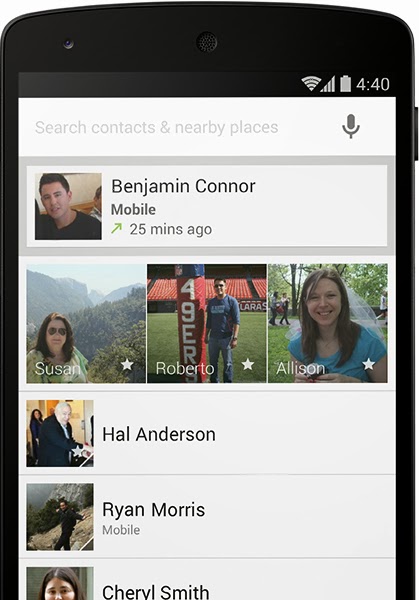
Another noticeable difference is that the phone dialer has changed dramatically. I haven't included a screen capture of it since it shows some of my contacts on it but I have included an image below that I found on the internet from Google's promotional webpage on the features of KitKat. The tab to switch from the dialer and history selection are now at the bottom of the phone screen on KitKit as opposed to being on the top of the screen as it was with earlier versions of Android.


The caller ID on KitKat is supposed to be "smarter" in that it will get the names of businesses that aren't on the phone's contact list and display it on the phone (if the business is calling you) provided that the business has a listing on Google Maps. There is also a setting that enables it to display your name from your Google account in the event that you call someone and your name is not listed in their phone's contact list if they are using an Android 4.4 phone. I rarely get called by businesses on my phone so I haven't really experienced the "smarter" caller ID which is offered by KitKat yet.

In terms of the SMS feature and it being integrated with Google Hangouts, on my LG Nexus-4, I didn't incorporate that feature when I upgraded my Google Hangouts. When I checked my SMS messages, they appeared in the same way as they did previously (prior to my upgrade).

I've been using Android 4.4 only about 3 days at the time of this blog entry and the battery life seems to not be as good as it was prior to me upgrading it. I won't say that it is bad but it definitely seems to not be as good as it was prior to my upgrade.

One other thing that I would like to mention because I use it is that Android 4.4 includes the ability to print photos, documents, and webpages to any Google Cloud enabled printer or HP ePrint enabled printer. Previously, I was using HP's own HP ePrint application for Android. Having this built into the OS of the phone opens up new possibilities for printing.

For a list of the features of KitKat, you can refer to *THIS* webpage. Please note that some of the information on the webpage is specific to Android 4.4 (KitKat) on the LG Nexus-5.

If you have any comments/questions regarding this blog entry, please don't hesitate to leave a comment in the comments section below. Please note that the comments are moderated and any comment containing a URL link (whether embedded or not) will automatically be flagged as spam and will not be posted.

Tuesday, November 12, 2013

Review of Blackberry Messenger (BBM) for Android and iOS

I've been using Blackberry Messenger (BBM) for Android for approximately 2 weeks along with using it on my Blackberry Q10 and I've decided to write my thoughts about the version that is currently available for Android (v1.0.0.72) as well as for iOS (v1.0.3.120)

You can download BBM for Android on the Google Play Store *HERE* and you can download BBM for your iPhone/iPad from iTunes *HERE*.
I've tried BBM for Android on my LG Nexus-4 as well as my Samsung Nexus-S. When I first downloaded the program when it was first released, because Blackberry wanted to control the number of users and make sure that nothing went wrong with too many users, there was a sign-up period which for me lasted a few days. However, as of the date of this blog entry, there is no waiting period in order to register/activate the program and get a Blackberry PIN.

The thing with BBM is that it uses a unique code/ID called a Blackberry PIN in order to add people into your Blackberry Messenger (BBM) contact list. You generally must know the person's Blackberry PIN in order to add/invite the person into your BBM contact list. The benefit of this method is that it requires approval from the person you are trying to add before you can chat with the person. Someone can't simply add you into their BBM contact list by knowing your phone number or your e-mail address. The drawback to this method (when compared with WhatsApp) is that there isn't a simple way of finding your friends who are using BBM when you are using the Android version of BBM.

With WhatsApp, the program will match the phone numbers in your phone's contact/addressbook and it will display all the people in your phone's addressbook who installed WhatsApp. The negative part of WhatsApp is that it goes through your phone's contact list for people who've installed WhatsApp and you might have someone in your phone's address book but you don't necessarily want to have them show up in your chatting program nor do you want your name to appear in their chatting program just because they have your phone number in their phone's addressbook.

On my Blackberry Q10, finding people who are using BBM is a bit easier but still requires the approval process. When I go into the BBM Menu on my Blackberry Q10, and then click on "Invites", there is a tab where I can see "Suggested" invites. I'm not sure how Blackberry does this but I believe that on Blackberries, it compares the people currently in your Blackberry Contact list and it will use this based on the e-mail address that someone used to activate BBM on their device. If BBM on Blackberry 10 detects a match, it will list the contact in the "Suggested" tab. Even if you add someone using BBM for Blackberry 10, the person must approve you before you are able to chat with him/her. On the current Android version of BBM, the "Suggested" tab is not there nor is the "Suggested" tab on the current iOS version of BBM.

During my tests with BBM on Android as well as on iOS (I tested it more on Android than on iOS), I found that sometimes the message would be delivered to my non-Blackberry phone while other times it wouldn't be delivered (the sender would see the check mark corresponding with the message having been sent but not delivered to the recipient's phone yet). I sent the message from my Blackberry Q10 to my Android phone as well as my iPhone 3GS and noticed that sometimes for some strange reason, there was no notification that a BBM message was sent to my non-Blackberry phone. When using my Blackberry Q10 to communicate/BBM with another Blackberry device, the messages were consistently received without any issues.

The Android and iOS version still requires a bit of work in order to make sure that messages are sent/received properly and instantaneously on non-Blackberry devices and I would like to see additional features such as the ability to talk or videochat between different platforms. The Blackberry version of BBM has more features than the current Android and iOS versions of BBM but hopefully Blackberry will include the features that Blackberry users are used to on the other platforms as well as improve the reliability of sending/receiving notifications of BBM messages waiting.

If you have any comments/questions regarding this blog entry, please don't hesitate to leave a comment in the comments section below. Please note that the comments are moderated and any comment containing a URL link (whether embedded or not) will automatically be flagged as spam and will not be posted.