Showing posts with label Google. Show all posts

Monday, December 22, 2014

Android 5.0 Available for LG Nexus-4

A few weeks ago, I received the prompt on my LG Nexus-4 informing me that there was a system update available for it (Android 5.0 / Lollipop).

One of the reasons I've purchased the Nexus line of products is because they are the first devices to get new system updates. Although my LG Nexus-4 was over 2 years old, I was glad that it was still slated to get Android 5.0 (Lollipop) when Lollipop was first announced.

For information about Lollipop, you can refer to the official website *HERE*. The 2 things that were of interest to me was mainly the improved battery life and the improved notifications. The battery life of my LG Nexus-4 was still very good and it could stay on standby with WiFi activated for over 24 hours between charges but not having to charge it as often is always something that I look for especially during those times when I am not able to charge my phone easily.


The update as mentioned in the above image requires a minimum of 500MB free on the device. I had a little over 1GB of space free on my LG Nexus-4 before going ahead with the upgrade and didn't experience any issues during the upgrade.

The upgrade process took me a little over 1 hour. My LG Nexus-4 had encryption on which might have increased the upgrade installation time. Personally, if upgrading, I would recommend planning not to have the use of the device for ~2 hours (depending on download speed).

After the upgrade, I noticed that a few of my applications were not Lollipop compatible (such as BT Notification application that came with the U8 Pro or UPro1 smartwatch). With the non-compatible applications, I removed them from my Nexus-4. Something else that I noticed after the upgrade was that for some reason, when I woke up in the morning, my LG Nexus-4 would be in a "frozen" state. When it was in this state, I could not get the screen to activate and would need to power off my device, wait a few seconds, and then power it back on again. The weird thing is that during the rest of the day, my phone would never go into this "frozen" state. It was only after I woke up that I wasn't able to power on the screen and it was also not something that happened every morning.

Prior to upgrading to Android 5.0, the Google Voice search on my Nexus-4 ("OK Google" search commands) worked seamlessly. However, after upgrading to Android 5.0, the "OK Google" search commands were more problematic.

One of the things that I noticed about Android 5.0 was that the phone could be unencrypted when powered on by using the pattern method. Prior to Android 5.0, the pattern method was not an option to encrypt/unencrypt the phone.

In terms of whether I'm happy with Android 5.0 on my LG Nexus-4, I would say that because my phone would randomly be "frozen" when I woke up, I can't really recommend people upgrading to Android 5.0 (although some of my friends who have upgraded to Android 5.0 didn't have the same issue as I experienced). Also, because I am using a U8 Pro or UPro1 smartwatch which relies heavily on the old Android notification system (and isn't compatible with the newer Android 5.0 notification system), Android 5.0 does limit some of the smartwatch's features which rely on the BT Notification app.

If you have any comments/questions regarding this blog entry, please don't hesitate to leave a comment in the comments section below. Please note that the comments are moderated and any comment containing a URL link (whether embedded or not) will automatically be flagged as spam and will not be posted.

Monday, October 13, 2014

OnePlus One OTA CyanogenMod Update to XNPH38R

After having my OnePlus One for ~1 week, I noticed an OTA (over the air) update was available for CyanogenMod earlier this week.

I decided to update it to see what the process was like as well as how it behaves after the update. Considering I still haven't really played with my OnePlus One for a long time (I only had it ~1 week and was still using mainly my LG Nexus-4 as my Android phone), I didn't really notice any issues with it prior to the update. That being said, generally when there are OTA updates for my devices, I will update them.

The update happened very seamlessly. After clicking on the "Install update", the phone rebooted and the update was applied immediately. I'm not sure if it was because my phone was encrypted via the security settings but the boot up seemed to take longer than usual so I powered off my phone and then repowered it back on. The phone powered on without any issues when I did this.

I then tested my OnePlus One briefly to see if it worked properly and based on the things that I tested worked without any issues.

If you have any comments/questions regarding this blog entry, please don't hesitate to leave a comment in the comments section below. Please note that the comments are moderated and any comment containing a URL link (whether embedded or not) will automatically be flagged as spam and will not be posted.

Monday, October 6, 2014

OnePlus One Purchasing Experience and Unboxing

I apologize for not having written a blog entry in close to 3 months since I've been busy with some other things and mainly write my blog reviews as a hobby and because writing and technology are 2 of my passions.

Although I've purchased/received many items that I could write about, I'll start with the latest technology gadget that I recently purchased. This would be the "exclusive" OnePlus One mobile Android smartphone.

I ordered it on Monday September 29, 2014 after receiving a random invitation from the company and was a bit hesitant on whether to purchase it or wait for the next Nexus version. As it turns out, a co-worker had offered me an invite the week previously on Friday but informed me that if I wasn't 100% sure that I would purchase it, he wanted to know so he could give it to someone else. Since I wasn't 100% sure that I wanted it (I was thinking of getting the next Nexus phone), I informed him that it might be best if he were to give his invite to someone else.

I didn't get the HTC Nexus-One but purchased the Samsung Nexus-S, skipped the Samsung Nexus Galaxy, got the LG Nexus-4, skipped the LG Nexus-5, and I was planning on getting the next Nexus version but it hasn't been announced yet. Because I probably wouldn't get another invitation to purchase the OnePlus One, I decided to redeem my invitation and ordered the OnePlus One when I arrived home from work on Monday September 29.

For those of you unfamiliar with the OnePlus One purchasing method, I'll just cover it briefly here. First of all, the reason that I wrote that the OnePlus One was an "exclusive" phone was because unlike most other phones where a customer can just purchase a phone given the amount of stock available at a retailer, someone wanting to purchase a OnePlus One must be invited to purchase it. Even after being invited to purchase it, he/she must purchase it within 24 hours of the invitation since the invitation expires. Also, in order to purchase the OnePlus One, the customer must create an account on the OnePlus One website as well as have a PayPal account since at the time of me writing this blog post, PayPal is the only accepted method of payment however OnePlus One will ship the phone to an address that isn't verified (I shipped it to my work address which isn't listed on my PayPal account).

The invitation marketing method is similar to how Google first distributed their Gmail and GoogleVoice accounts. If I were to want to purchase the latest 2 phones (Blackberry Passport and iPhone 6) available now, I can basically pre-order it from my carrier or I can purchase these phones from one of the retailers who sell them. With the OnePlus One, excluding purchasing it second hand, you can only purchase it from their website and in order to purchase it from their website, you must be invited to purchase it either by randomly being selected by the company or being invited by someone who already purchased it.

I was surprised how fast I received the OnePlus One after working it late on Monday September 29 (~10:00PM EDT). Because I knew that I would have to pay taxes/duties/customs/brokerage fees, I opted to send the item to my place of work as opposed to sending it to my place. On the OnePlus One website, it showed the "Processing" status the following day on Tuesday, September 30 and then on Wednesday, October 1, the item shipped from Los Angeles. I received it in Montreal during my lunch on Thursday October 2 at work at ~1:58PM where I left the fees after having received a phone call from the courier company (DHL) informing me what the fees would be after it passed through Canadian customs.


I didn't open bubble-wrap envelope before getting home but after opening it, there were 2 boxes; one small OnePlus One labeled box and another brown cardboard coloured box.


When I opened the brown cardboard coloured box at home as well as the small OnePlus One labeled box, I saw that the small OnePlus One labeled box contained the AC USB adapter plug and the brown cardboard coloured box contained a large OnePlus One labeled box. I believe that within the smaller white OnePlus One box, there was also a nanoSIM card adapter/tray. I was a bit curious on what the nanoSIM card adapter/tray was used for but when I ejected the OnePlus One SIM card tray and saw that it was a microSIM card tray, it was quite obvious that the nanoSIM card adapter/tray are for those users who have a nanoSIM. Instead of having to purchase a microSIM to nanoSIM converter, the included nanoSIM card adapter/tray is used directly instead of using the microSIM card adapter/tray that was already in the phone. This is ingenious and I wish most manufacturers included a different tray for at least the 2-3 common sized SIM cards for their phones without having to resort to an adapter.


Opening up the large OnePlus One labeled box, I found the OnePlus One phone. Underneath the white board that the phone sat on, was the USB cable as well as the SIM extraction tool.


It will take me a few days/weeks of using my new OnePlus One phone in order to write my review/thoughts about it but the phone is noticeably larger than my LG Nexus-4 and in terms of responsiveness/speed, I find it to be quite fast and responsive. After opening the box on Thursday evening after work, because I arrived home late, I didn't really "play" with my new technology gadget but charged it for the entire evening and after work on Friday I spent most of my time configuring it as well as installing/customizing the Android applications on it.

You can get some information of the OnePlus One from the keynote document either from the company's own website *HERE* or from my blog *HERE*.

If you have any comments/questions regarding this blog entry, please don't hesitate to leave a comment in the comments section below. Please note that the comments are moderated and any comment containing a URL link (whether embedded or not) will automatically be flagged as spam and will not be posted.

Tuesday, July 8, 2014

Android 4.4.4 Available for LG Nexus-4

After updating my LG Nexus-4 to Android 4.4.3, a few weeks later, I received another notification on my LG Nexus-4 informing me that there was a new system update available. The update that was available was Android 4.4.4.

The updating to 4.4.4 was roughly the same steps as when I updated my LG Nexus-4 to Android 4.4.3. After clicking on the "Restart & install," my Nexus-4 rebooted and began the upgrade/installation from 4.4.3 to 4.4.4.

After the updating process completed, my Nexus-4 rebooted automatically and because my Nexus-4 is encrypted, I was presented with the prompt asking me to enter my decryption password. When I entered my decryption password, my Nexus-4 continued to start and my Nexus-4 was updated successfully to Android 4.4.4.


After my Nexus-4 was updated, I tested Android 4.4.4 briefly and all the applications that I had installed on my Nexus-4 and used on a regular basis started without any issues. In terms of any noticeable changes, I didn't notice any difference between 4.4.3 and 4.4.4 in such important things as wireless strength or battery life.

If you have any comments/questions regarding this blog entry, please don't hesitate to leave a comment in the comments section below. Please note that the comments are moderated and any comment containing a URL link (whether embedded or not) will automatically be flagged as spam and will not be posted.

Tuesday, June 24, 2014

Android 4.4.3 Available for LG Nexus-4

A few weeks ago, I received a prompt on the upper right corner of my LG Nexus-4 screen informing me that there was a system update available. I decided to update my LG Nexus-4 with the new system update.

Since I already had Android 4.4 on my LG Nexus-4, I wasn't expecting anything dramatic with this update to 4.4.3.

The entire update process took approximately 20 minutes. Since my LG Nexus-4 was encrypted based on the system settings, your update process will probably be shorter.

When I went to the system update screen, I was presented with the following screen:

Selecting the "Restart & install" initiated the installation process which comprised of a restart of my system where I obtained the following screens:


After the above screen finished, my LG Nexus-4 rebooted and I was prompted for my decrypt password. When I entered my decrypt password, the rebooting continued. When my LG Nexus-4 fully rebooted/restarted, I checked the system settings to see that I now had 4.4.3 on my LG Nexus 4.


If you have any comments/questions regarding this blog entry, please don't hesitate to leave a comment in the comments section below. Please note that the comments are moderated and any comment containing a URL link (whether embedded or not) will automatically be flagged as spam and will not be posted.


Monday, November 25, 2013

Android 4.4 (KitKat) Available for LG Nexus-4

A few days ago, I received the prompt on my LG Nexus-4 notification bar informing me that there was an update available for my Nexus-4. When I checked the update, it was for Android 4.4 (KitKat).

This blog entry will be about the update process as well as my early thoughts regarding Android 4.4 (nicknamed KitKat).

After receiving the prompt indicating that there was an update available and that my Nexus-4 had automatically downloaded the update, I decided to install it. Excluding the download time (since this will depend on your internet connection and unfortunately I didn't time this because it happened on my phone in the background), the update process was under 15 minutes. The size of the update as shown in my screen capture is 238.9 MB.

The update process was completely automated and it restarted twice without any user intervention (even though my SIM had the SIM lock activated). Below are some pictures that I took of my actual LG Nexus-4 screen when I was upgrading my Nexus-4 from JellyBean (Android 4.3) to KitKat (Android 4.4).


Prior to the update, the screen of my LG Nexus-4 looked like the screen capture below:


After the update, the screen of my LG Nexus-4 looked like the screen capture below:


In terms of the differences in Android 4.4 on my LG Nexus-4, the most noticeable differences is that the notification bar for the time/battery/wireless went from blue to white. I personally preferred the blue but really is a matter of personal preference.

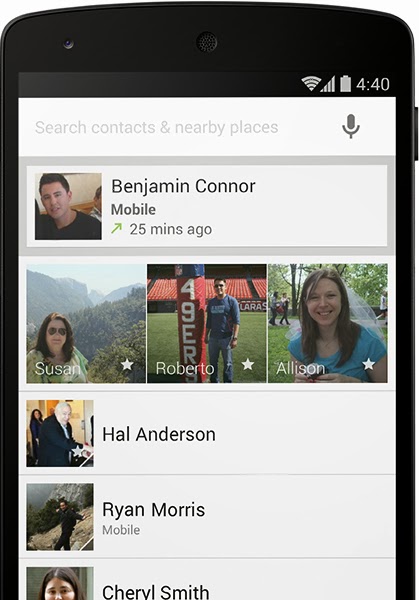
Another noticeable difference is that the phone dialer has changed dramatically. I haven't included a screen capture of it since it shows some of my contacts on it but I have included an image below that I found on the internet from Google's promotional webpage on the features of KitKat. The tab to switch from the dialer and history selection are now at the bottom of the phone screen on KitKit as opposed to being on the top of the screen as it was with earlier versions of Android.


The caller ID on KitKat is supposed to be "smarter" in that it will get the names of businesses that aren't on the phone's contact list and display it on the phone (if the business is calling you) provided that the business has a listing on Google Maps. There is also a setting that enables it to display your name from your Google account in the event that you call someone and your name is not listed in their phone's contact list if they are using an Android 4.4 phone. I rarely get called by businesses on my phone so I haven't really experienced the "smarter" caller ID which is offered by KitKat yet.

In terms of the SMS feature and it being integrated with Google Hangouts, on my LG Nexus-4, I didn't incorporate that feature when I upgraded my Google Hangouts. When I checked my SMS messages, they appeared in the same way as they did previously (prior to my upgrade).

I've been using Android 4.4 only about 3 days at the time of this blog entry and the battery life seems to not be as good as it was prior to me upgrading it. I won't say that it is bad but it definitely seems to not be as good as it was prior to my upgrade.

One other thing that I would like to mention because I use it is that Android 4.4 includes the ability to print photos, documents, and webpages to any Google Cloud enabled printer or HP ePrint enabled printer. Previously, I was using HP's own HP ePrint application for Android. Having this built into the OS of the phone opens up new possibilities for printing.

For a list of the features of KitKat, you can refer to *THIS* webpage. Please note that some of the information on the webpage is specific to Android 4.4 (KitKat) on the LG Nexus-5.

If you have any comments/questions regarding this blog entry, please don't hesitate to leave a comment in the comments section below. Please note that the comments are moderated and any comment containing a URL link (whether embedded or not) will automatically be flagged as spam and will not be posted.

Monday, August 19, 2013

Android Device Manager Review (Locate your Android Device)

Google recently introduced/incorporated an Android Device Manager on their Android devices. It is a fairly simplified application/setting which allows users the ability to locate their Android device(s) as well as protecting your personal information by offering users the ability to wipe the device remotely. Both of these features require that your device either be connected to a WiFi access point or for your device to have an active data connection/plan. Google made an announcement regarding this new feature on the following blog entry *HERE*.

To activate it on your Android device, you would click on the Google Settings Icon and then click on Android Device Manager. You must configure this on each of your Android devices since the setting is specific to the device itself. After doing this, you will then turn on the "Remotely location this device" and/or "Allow remote factory reset" depending on what you want to activate.


In order for the location to work, the phone must have data enabled or be connected to the wireless network. After you've activated Android Device Manager on your Android device, in order to test it or use it, what you will have to do is log onto your Google account and go to the following website: https://www.google.com/android/devicemanager

From the website, users can get an approximate location of where their Android device is as well as cause it to ring. The ring can be deactivated on the device itself by pushing the on/off button on your Android device so this feature is used mainly to find your device if you are in close proximity to it. For example, if you've misplaced your phone at home (or at work), instead of calling your phone (where your phone might be muted), you can log onto the above website on a computer and force your phone to ring. This will automatically unmute your phone, raise the volume to the maximum, and sound an alarm/ring. From the sound, depending on your proximity to your Android device, you should be able to locate your it. Left undisturbed, your phone or Android device will ring for approximately 5 minutes. As mentioned above, anyone can turn off the alarm by pushing the on/off button on your device.

During my testing, I have found that the Android Device Manager is sometimes problematic and sometimes it will work while other times it won't work. This is for both the ringing of the device and the locating of the device feature.

I have not tried using the "Erase Device" feature mainly because I didn't want the hassle of re-installing all my applications and re-configuring the device again. You can scroll through the Android devices which have been installed using your Google account.


The Android Device Manager website also allows users to rename their device in case they want to change the name that Google automatically used to identify the device. In the above screenshot, I renamed the name that Google gave for the Android installation on my HP Touchpad to "HP Touchpad" from the default name which I believe was a shortened form of Cyanogenmod with the version number.

Android Device Manager offers basic features for locating and protecting your Android device. Hopefully, Google adds more features to this. Even though Android Device Manager currently only offers basic features, I do find that the features are very good and have no issues recommending people to activate it on their Android device(s). It probably won't stop a thief from stealing your Android device but it might help you find your device from a thief depending on how fast you act and whether the thief has had a change to circumvent the Android Device Manager features. Since the features rely on an active data connection or your device being connected to a WiFi access point, a thief could easily circumvent the features by either turning off data or putting your Android device into Airplane Mode.

If you have any comments/questions regarding this blog entry, please don't hesitate to leave a comment in the comments section below. Please note that the comments are moderated and any comment containing a URL link (whether embedded or not) will automatically be flagged as spam and will not be posted.

Monday, July 1, 2013

LG Nexus-4 Dislikes

Sorry that I didn't post anything to my blog last week but I was out of town and my internet connection wasn't stable. I wrote about some of the things that I dislike about the Blackberry Q10 a few weeks ago and someone asked me what I disliked about my LG Nexus-4 and because I'm not a Blackberry hater, I've decided to dedicate a blog entry on what I dislike about my LG Nexus-4.

Please note that as mentioned in my previous blog entry regarding the LG Nexus-4, the LG Nexus-4 represents my Android phone upgrade from my Samsung Nexus-S (just like the Blackberry Q10 represents the Blackberry phone upgrade from my old Blackberry Bold 9700).

The first thing that I don't like about my LG Nexus-4 is that the SIM card extraction hole is too small for a paper-clip. I can use a paper-clip to extract the SIM card from my iPhone 3GS but the LG Nexus-4 requires a very thin SIM extraction tool (which is included with the phone). Since a paper clip won't work on the LG Nexus-4, when I plan on swapping my SIM card (for example, when I'm travelling), I must remember to bring my SIM extraction tool.

The second thing that I don't really like about my LG Nexus-4 is that it doesn't have a user removable/replaceable battery. My Samsung Nexus-S had the user removable/replaceable battery and I've just replaced the battery for that unit. I expect that after a few years, the LG Nexus-4's battery will not maintain its charge and I will either have to look at hacking it to replace the battery or purchase a new Android phone.

The third thing that I don't like about the LG Nexus-4 is that straight out of the box, it is not LTE capable. When most phones on the market today (being released at the same time as the LG Nexus-4) is LTE capable, it not being LTE capable might be a deal breaker for some people. According to some documention, there is a way to make it LTE capable but I haven't tried this with my Nexus-4 yet since the data plan that I have with my Nexus-4 is limited to 3G speeds.

The fourth thing that I don't really like about the LG Nexus-4 is that the output/external speaker is located on the back of the phone. This means when I place my phone on a table as I'm viewing a video/movie, the sound is a bit muffled coming out of the output/external speaker.

Those are my main dislikes regarding the LG Nexus-4 when I compare it with my older Samsung Nexus-S. I wasn't too thrilled with the LG Nexus-4 using a microSIM card but most of the newer phones use a microSIM card as opposed to the larger miniSIM card.

Although I haven't experienced this with my LG Nexus-4, a few of my work colleagues mentioned that it is somewhat fragile and one of my work colleague's Nexus-4 front glass panel shattered when he accidentally dropped it. So far, I have never dropped my Samsung Nexus-S which I've had for over 5 years nor have I ever dropped my LG Nexus-4 which I've had for a few months so I can't say which is more fragile (nor am I willing to test which is more fragile). Both my Samsung Nexus-S and my LG Nexus-4 are in a thin plastic hard case which offers a bit more protection but I'm not sure how either of them would do if they accidentally fell from a height of ~4 feet (which is the height that I normally have my phones when I'm using them for something other than talking).

If you have any comments/questions regarding this blog entry, please don't hesitate to leave a comment in the comments section below. Please note that the comments are moderated and any comment containing a URL link (whether embedded or not) will automatically be flagged as spam and will not be posted.

Monday, April 8, 2013

Rikomagic MK802IIIS Android Mini PC Review

I was searching for a device to use on my HD televisions since I had the LG Smart TV Upgrader ST600 Box connected to my main television set (I purchased the TV Pad for my parents). I was using my Acer Iconia Tab A100 on my HD television (using a micro-HDMI to HDMI cable) when I wanted to watch Netflix programming outside of the Canadian and the US Netflix selection using the Unblock-Us service but I thought that there must be a better solution.

Enter the Rikomagic MK802IIIS Android Mini PC. The device is slightly larger than my USB SD card reader and my Nokia CS-18 Internet Stick.

The device plugs into an HDMI port on your HD television/monitor. The unit comes with a small HDMI extension cable, a micro-USB male to USB male cable, and a micro-USB male to USB female adapter. The Rikomagic MK802IIIS includes a small HDMI extension cable in case it is difficult to plug the device into your television's HDMI port. The included micro-USB male to USB male cable is provided since the device is powered by USB (micro-USB port) and most HD televisions have a USB port that it can be connected to in order to supply power to the unit. In my current set-up, I don't use the micro-USB male to USB female adapter but it can be used in order to plug an external memory/disk drive to the unit or a wired mouse/keyboard to the unit. The Rikomagic MK802IIIS also has a port for adding a micro-SD memory card. The device is wireless and there isn't a port for wired ethernet connection but I suppose that you can perhaps use a micro-USB (or USB) to ethernet adapter. I will probably purchase such an adapter and test it on my unit in about a month.

According to the specs on the MK802IIIS, it has a dual-core CPU and a quad-core graphics processor. I find the MK802IIIS to be very responsive. As mentioned, I use the device mainly to watch Netflix and YouTube videos and I find that the MK802IIIS does this very well.


Here is a list of some of the things that I don't really like about the Rikomagic MK802IIIS:

1) On one of the HD television that I tried, there was either something wrong with the unit itself or the USB port on the HD television did not supply enough power for certain tasks and the unit would power off. For example, when I went into the Google Play store, the unit would immediately power off or when I went to Netflix, it would power itself off immediately. When I plugged my micro-USB AC adapter to the unit and performed the same task, it didn't power itself off. On another HD television that I tried, the unit did not power itself off when it was powered by the television's USB port.

2) The ability of the Rikomagic MK802IIIS to lock onto the wireless signal (even when my wireless router was within 2 feet of the device) was sometimes problematic. Whenever it didn't connect to my wireless router, I would sometimes have to reboot my wireless router (although my other devices were able to connect to this wireless router without the need to reboot it occasionally). This is why I am looking for a wired solution for it although it isn't a high priority for me. When the unit locked onto my wireless signal (remember that my wireless router is within 2 feet of the television that I wanted to use), there was no problems maintaining the signal.

3) The included version of Android (v 4.1.1) on the Rikomagic MK802IIIS doesn't come with the Android default screen locking feature. This is a problem because if you configure the device to use your Google account (for Gmail, Calendar, and the GooglePlay store) and later lose the device (or it is stolen), the person has access to your Google account on the device. To prevent this from happening, I downloaded a program/application locking app so that in order to launch any particular app on the MK802IIIS, a password was required.

4) The first time I connected the device to the internet, the device immediately updated/downloaded the GoogleMaps and StreetView application but after the download, there was no GoogleMaps application on the device nor can you launch it or redownload it for the device.


Here is my list of the Rikomagic MK802IIIS positive aspects:

1) As stated previously, it plays Netflix videos very well. I find the video quality to be amazing. This is of course dependent on your internet connection speed as well as the type of HD television you have.

2) It includes the actual Google Play store as opposed to some third party Android application store.

3) The MK802IIIS has multiple resolutions. I'm not sure what the maximum resolution is but on the television that I was using I was provided with resolutions of 1920x1080p-60, 1920x1080p-50, 1280x720p-60, 1280x720p-50, 720x576p-50, & 720x480p-60. On another HD television that I tried, I didn't see as many resolution options so it is probably dependent on the television used.

4) Rikomagic included an application called eHome Media Center on the MK802IIIS which allows the MK802IIIS to either function as a media server (enabling you to play videos stored/connected to the MK802IIIS) or a media player (enabling you to play videos onto the connected television from a media storage device such as a media drive or a media computer). On a secondary note, I tried to copy this program onto my other Android devices (Acer tablet, LG Nexus-4, and Samsung Nexus-S) and even though the program installed on these devices and ran, it was not able to see my media drive or my media computer on the same network.

5) The MK802IIIS comes pre-rooted so you can run applications requiring root access. The only thing that you might want to do is to download SuperUser from the Google Play store so that you have control over the which programs have root access to the system.

6) There is a free Android application called MK802III Remote Client available at the Google Play store that will allow you to remotely control the MK802IIIS device via your internal network (both your Android device and the MK802IIIS must be on the same network).

I'm not sure if this was an issue with the television that I connected my MK802IIIS to or the resolution that I selected or a problem with the MK802IIIS unit itself but occasionally/randomly (maybe after ~5 hours of viewing Netflix, the television would turn black for ~1 second and then would resume the Netflix playback.

Overall, even based on some of the issues that I mentioned above, I have no problems recommending the Rikomagic MK802IIIS unless the issues that I mentioned above is a show-stopper for the person (ex: the person wants to use Googlemaps on the device).

If you have any questions/comments regarding this blog entry, please don't hesitate to leave a comment in the comments section below. Please note that the comments are moderated and any comment which contains a URL link (whether it is embedded or not) will automatically be labelled as spam and will not be posted.

Monday, March 25, 2013

LG Nexus-4 Review

I managed to get my hands on a LG Nexus-4 a few days ago and decided to write my review this week on my experience and my thoughts on it.

For the last few years, I've been skipping at least one generation in terms of phones instead of getting each new upgrade that the phone manufacturer comes out with (which I was doing with the Handspring/Palm line of products... Handspring VisorPhone, Treo 600, Treo 650, & Treo 680). My Android phone of choice a few years ago was the Samsung Nexus-S. There was nothing really wrong with my Samsung Nexus-S but it was starting to show its age (1 cm scratch on screen, battery not lasting for an entire day based on my limited usage, and it being somewhat sluggish) and when the opportunity came for me to get the LG Nexus-4 at a good price, I went for it.

I like the Nexus line because it is pure Google Android without any bloatware from either the carrier or the phone manufacturer. I didn't get the HTC Nexus-One, purchased the Samsung Nexus-S, skipped the Samsung Galaxy Nexus, and purchased the LG Nexus-4. The Nexus line also comes factory unlocked regardless of which carrier you purchase it from which is another thing that I like about it.

There are a lot of reviews that compare the LG Nexus-4 with the Samsung Galaxy Nexus. Since I never actually handled a Samsung Galaxy Nexus but did read about it, I won't be comparing the LG Nexus-4 with the Samsung Galaxy Nexus.

What I like about the LG Nexus-4 is that it is fast. I probably find it fast because I skipped a generation in terms of the Nexus line so the speed improvement and the responsiveness of the operating system is definitely the first thing that I noticed when I started using my LG Nexus-4. In fact, if possible, I find it a bit too responsive/fast. The Nexus-S had a single core processor whereas the Nexus-4 has a quad core processor.

The screen resolution is very good (1280 x 768 compared with 800 x 480) and I find that the camera takes very good pictures (8 megapixel compared to the 5 megapixel resolution of my old Samsung Nexus-S). I didn't really use the front facing camera on my Samsung Nexus-S but the LG Nexus-4's front facing camera is also better.

Something that was introduced in the Nexus line with the Galaxy Nexus is the ability to unlock the phone using the front facing camera (Face Unlock). This is something that I find amazing and use to unlock my phone. As a back-up in case the camera doesn't recognize the face of the owner, it can be set to unlock either via PIN or via pattern unlock. Just in case someone tries to use a picture of the owner in order to unlock the phone (or unlocking the phone while the owner is asleep), the phone also has a setting requiring the owner to blink before it will unlock. I find the face recognition to be very good. I set the phone to unlock only when I blink and I find that the blinking is a hit-or-miss in that the phone will sometimes not detect whether I've blinked or not and will not unlock.

Something that I like about the LG Nexus-4 is that it is pentaband 3G (850, 900, 1700, 1900, & 2100) and quadband GSM/EDGE (850, 900, 1800, & 1900). In Canada, this means that unlike the Samsung Nexus-S where a Videotron/WindMobile Nexus-S would not work on the 3G network on Rogers/Fido (but would work on the 2G network to make/receive calls as well as data) and would not work at all on the Bell/Telus network, the LG Nexus-4 will work on whichever Canadian carrier (Rogers, Fido, Chat-r, Bell, Telus, VirginMobile, Koodo, Videotron, PetroCanada) regardless of which carrier you originally purchased it from. The Samsung Galaxy Nexus was also pentaband 3G so in Canada, it would work in the above SIM operated Canadian wireless provider's network regardless of which carrier the phone was purchased from (especially since as mentioned above all Nexus phones are sold factory unlocked). What I'm not really crazy about is that it doesn't use the mini-SIM card (like the older phones and like my Samsung Nexus-S) but uses the micro-SIM card. The other thing that I find lacking in the phone is that it doesn't support LTE when most of the new phones coming out support LTE.

Something else that I like about the LG Nexus-4 is that it has Gorilla Glass whereas my Samsung Nexus-S didn't which is why it probably has a 1 cm scratch on the glass.

The LG Nexus-4 doesn't have a user removable battery unlike the Samsung Nexus-S which is somewhat of a drawback. However, I've been using my iPhone 3GS and didn't have any problems with wanting to change the battery or swap the battery. In my opinion, having a user replaceable battery would still be good and it is somewhat of a drawback that the LG Nexus-4 doesn't have this.

One somewhat annoying thing for me (but it probably wouldn't bother most people unless they switch SIM cards a lot) is that the SIM ejector hole requires a very thin ejector tool (included). The edge/end of a paper clip won't fit into the SIM ejector hole and neither will the iPhone SIM card ejector tool (at least with the tool included in my iPhone 3GS and the tool from an iPhone 4). The Nexus-4 does include the special/thin SIM card ejector tool but for someone who switches SIMs a lot, it is an annoyance that I can't easily eject the SIM card with a paper clip like I can for my iPhone 3GS.

If you have any comments/questions regarding this blog entry, please don't hesitate to leave a comment in the comments section below. Please note that the comments are moderated and an comment containing a URL link (whether embedded or not) will automatically be flagged as spam and will not be posted.

Monday, March 11, 2013

Online/Cloud Storage Solutions

There are a multitude of free online/cloud storage solutions available to consumers. I use 4 online/cloud storage solutions and I thought that I would describe them for this week's blog entry. They all offer a client for Windows which synchronizes the online/cloud storage space with a specific directory on your computer. Some of the online/cloud storage solutions also have clients for cellphones (Blackberry, Android, iOS, and HP's WebOS).

The first online/cloud storage solution that I used was Dropbox because most of the people where I work used it. I started with 3 GB of online storage and through referrals, I'm currently at 5 GB of storage space available. By clicking on the above link and going through with the installation process, you will get a bonus of 500 MB (giving a total of 3.5 GB). Dropbox gives 500 MB for every referral up to a maximum of 16 GB. There are other methods to increase your online storage (via connecting to your Facebook account (+125 MB), connecting to your Twitter account (+125 MB), following their Twitter feed (+125 MB), etc. For a complete list of ways to get additional storage space, you can check out their comprehensive list on their website. Dropbox offers mobile clients for Blackberry, Android, and iOS).

The second online/cloud storage solution that I used was Google Drive. Google Drive was originally Google Docs. I use Google Drive mainly because it is part of Google and I use most of Google's products. Google Drive gives 5 GB for free. Google Drive includes a mobile client for Android and iOS.

The third online/cloud storage solution that I used was SkyDrive. It is part of the Microsoft line via their Live products. My SkyDrive is 25 GB as part of a promotion that they had. I believe that new users get 7 GB of free online storage. Because I have more storage space on SkyDrive, I find myself storing most of the files that I want to back up on SkyDrive.

The fourth online/cloud storage solution that I used is Box. My Box account is at 50 GB of free online storage via a promotion that they had for users of the HP TouchPad. They currently have a feature where business users can get 50 GB of online storage for free via a referral from someone who already has 50 GB at the same company. Box determines if the e-mail address of the person doing the referring is a company e-mail address. Box is the only company to have a native WebOS client application for the HP TouchPad. It also supports the most mobile clients (Blackberry, Android, iOS, WindowsPhone, and Playbook)

Out of the four online/cloud storage solutions that I've mentioned on this blog, I primarily will use (in the following order): Box, SkyDrive, Google Drive, and then Dropbox. The reason why I primarily use Box is because I have the most space available via Box than any of the other cloud storage solutions that I've listed here. However, generally I find myself storing important files on all 4 online/cloud storage locations so that if any one solution fails or is not available, I will still have a copy of my files.

All the online/cloud storage solutions that I've listed work similarly (at least based on the type of usage that I use them for and I believe that most people would use them for) so my recommendation on which solution to use would depend on how much free storage space the company offers and whether you use the company's other products (ex: Google or Microsoft Live).

Before uploading any of my files onto any cloud storage product, depending on the file, I will generally encrypt the files to keep them away from prying eyes. For confidential files like tax slips/receipts, bank statements, etc., I will always encrypt these confidential files whereas for pictures I will generally leave those unencrypted. Even though most (or all) of the online storage companies don't allow guests to download files without you either sharing the files or making a link available, my feeling is that you can never be too sure who has access to your files on any of these storage spaces including the company itself.

If you have any questions/comments regarding this blog entry, please don't hesitate to write a comment in the comment section below. Please note that the comments are moderated and any comment that contains a URL link (whether or not it is embedded) will automatically be flagged as being spam and will not be posted.

Sunday, July 8, 2012

Google Play Store selling Nexus-7 Tablet to Canadians

I was looking at the upgrade for my Samsung Nexus-S (Galaxy Nexus) at the Google Store and noticed Google is accepting orders from consumers who want to purchase their new tablet the Nexus-7. Surprisingly when I went to the Google Play Store, I noticed Google was actually shipping this product (once it is available) to Canadians as well as to some other countries outside the US. This is somewhat unusual because generally a lot of the other products that Google releases isn't available in Canada (ex: Chromebook, Google Voice, Google Music, etc.)

I already have an Acer Android 7" tablet (Acer Iconia Tab A100) that I use but having something that is pure Android (without the customizations of the manufacturer) is something that is appealing to me. The Acer tablet doesn't have a lot of Acer customizations but I prefer using devices (cellphones, tablets, etc.) that don't have the carrier add-ins or the manufacturer's add-ins. It was actually one of the reasons why I opted to purchase a Nexus-S as opposed to purchasing another Android phone.

The Google Play Store seems to be using UPS to ship the item to Canadians and if the item is actually being shipping from the US to Canada using UPS, I will definitely not purchase it because of UPS's high brokerage fees when receiving items that were shipping from the US.

I'll continue to read the reviews about the Nexus-7 before I decide whether to purchase it or not. The hardware specifications look very nice and are better than my current Acer Iconia Tab A100 but then I've never really ran into a problem with my Acer Iconia Tab A100 (except that I consider the battery life to be somewhat on the weak side). The expected battery usage for the Nexus-7 seems good but normally I don't trust the values posted by the manufacturer since I often find these values don't represent real usage. If I do manage to get my hands on one either as a testing unit, I'll probably write a blog review on it.

If you live outside the US and you're interested in purchasing the new Google Nexus-7 tablet when it becomes available, check it out the Google Play Store. They have 2 models (8 GB & 16 GB). In my opinion, the price point for the 8 GB model ($210+taxes) is also good.

If you have any questions/comments regarding this blog entry, please don't hesitate to place a comment in the comments section. Please note that the comments are moderated and any comment that contains a URL link (whether or not it is embedded) is flagged as spam and won't be posted.

Sunday, June 17, 2012

Google Authenticator & Google's 2-Step Verification Process Review

Since I sometimes log onto public PCs to check my Gmail account and I wanted a bit more security because I didn't know what was installed on those PCs (keyloggers, Wi-Fi snooping, etc.), I configured my Google account to use the 2-step verification.

For information about 2-step verification process, please refer to Google's YouTube information video about it below.

How this works is when accessing your Google account (like Gmail), after entering your Google password, you are prompted for a specific algorithm generated PIN. This PIN is displayed on a program called Google Authenticator which can be obtained for Blackberries, iOS devices (iPhone, iPod Touch, iPad), and AndroidOS devices or it can be sent to your cellphone via SMS or it can be configured to call your phone where the PIN is given to you via an automated voice system. Since I have multiple phones, I sometimes use the automated phone system to get the 1-time usage PIN on the phone that doesn't have Google Authenticator activated with my Google account (for example: I might have the Google Authenticator program on my personal cellphone whereas I would configure the automated phone system (or SMS) to use my work cellphone. You should be aware that when the Google system calls you, the incoming phone number will be a blocked/private number. If your phone is configured not to accept blocked/private calls, you will have to allow for blocked/private calls if you want to receive the automated phone calls from the Google Authentication system.


I've installed the program on all 3 phone platforms but it will only work on 1 phone at a time because the Google Authenticator program must be configured for the Google account on 1 device only. If you change devices or want to use Google Authenticator on another device, you will have to go into the 2-step verification set-up and select "Remove/Replace" for the device.

What I like about Google Authenticator is that it allows you to get an extra level of security for your Google account where it displays the 2nd password (PIN) on your phone. The Google Authenticator program doesn't require data or WiFi and the code is generated via algorithm so if you don't have WiFi coverage and/or you don't have a data plan, you can still use the Google Authenticator application. In a lot of respects, it is similar to the security card that we use where I worked called a "RSA SecurID card".

What I don't really like about the 2-step process is that some applications don't support it and you will have to generate these application specific passcodes for these applications. Every application specific passcode that you create is another method of gaining access to your Google account so you have to be careful where you enter these codes. The good thing about these codes is that they can be revoked if necessary.

One another thing about the 2-step verification process is that you can generate 1 time usage passcodes. These passcodes are similar to the application specific passcodes except that once you enter them once to access your account, the passcode expires and you can't use it again (even on the same computer/browser or with the same application).

What makes Google's 2-step verification system and Google Authenticator great is that even if someone manages to guess/hack your Google password, without your cellphone (or the associated Google Authenticator program), they won't be able to get into your Google account.

If you have any questions/comments regarding this blog entry, please don't hesitate to leave a comment in the comments section below. Please note that comments are moderated and comments that contain a URL link will be flagged as being spam and will not be posted.

Sunday, March 4, 2012

Samsung Series 5 3G Chromebook Review

I've been using/testing a Samsung Series 5 3G Chromebook for a few months and decided to post a review of it after a few of my friends asked me about it.

In case you haven't guessed based on my other blog entries, I'm located in Canada and as of the date that I'm writing this blog entry/review, the Samsung Series 5 3G Chromebook is not widely available in Canada (it is actually not being sold in Canada unless you can find it through private sellers). I managed to get mine during a recent trip to Las Vegas.

The first thing that needs mentioning is that in order for the Chromebook to be useful, it absolutely requires access to the internet. There is very little that can be done with the Chromebook if it is not connected to the internet either via WiFi or via the carrier's data network. The Chromebook that I purchased is the 3G model which includes 100 MB per month of data from Verizon Wireless in the US and it also has a 3G SIM card slot (carrier unlocked) in case the owner travels outside the US and/or wants to use a SIM card for data.

The premise behind the Chromebook is that most users use their computers/laptops for internet use whether it is to check their e-mail, browse the internet, access their social media accounts like Twitter, Facebook Google+, etc. or watch online videos.

The first thing that I like about the Chromebook is that it boots up almost immediately (under 10 seconds). After logging onto to the Chromebook (using your Google account), the user is presented with a Chrome browser (similar to what you would get on a Microsoft Windows machine). You then use the browser as you normally would to access the websites that you would normally access. I didn't have any issues accessing most of the websites that I would normally use.

You will notice in the specs that the Chromebook does not have a very large capacity in terms of the hard drive. The reason for this is that it assumes that all documents that you would create will be stored in the cloud (Google Docs).

In terms of what you can and can't install on the Chromebook, you can install Chrome applications/extensions (web applications) from the Chrome web store similarly to what you can do with Chrome on a Microsoft Windows based machine.

If you are someone who uses Google products a lot (Gmail, Google Docs, Google+, etc.) and the majority of what you want to do is web based, I believe that you might consider getting a Chromebook. I've tested Netflix on the Chromebook and it works very well. SlingPlayer also works but requires a workaround (you have to go through Facebook).

The negative things that I want to mention about the Samsung Series5 3G Chromebook is that the battery is non-removable and the memory can't be upgraded. Also, I find that the default setting for the touch pad is not as good as the ones that I've used on other netbooks/laptops. After configuring the touch pad based on your Google account, it functions a lot better but the moment you log out, it reverts back to the default settings until you log in again.

Another negative aspect that I've noticed is that because the Chromebook requires internet access, it can sometimes have problems accessing public hotspots which require you to agree to certain conditions found on a webpage before internet access is granted. The way that you are supposed to do this if the Chromebook is powered on from a powered off state and not in suspend/sleep mode state is that you must first access the Guest account and then use the browser within the Guest account to agree to the WiFi hotspot terms/conditions. After doing this and verifying that you have access to the internet with the Guest account, you would then log out the Guest account (making sure that you don't shut down the Chromebook) and log in with your personal Google account. However, as mentioned, I've sometimes experienced issues doing this. To solve this issue, what I normally do is that I keep my Google account logged in and leave the Chromebook in a standby/suspend state. When I lift up the lid of the Chromebook, I will log into my Google account with the password from the suspend/sleep state. From the power-off state when you turn on the Chromebook, it will try to authenticate your Google account and will fail because you don't have access to the internet before you accept the hotspot terms/conditions whereas from the suspend/sleep state, it is only using your password to unlock the screen and doesn't immediately require access to the internet.

The things that I like about the Chromebook is that it boots up very fast and the battery lasts longer than any of the laptops/netbooks that I've used in the past. When I want to do something fast (like check a website), I will normally use a tablet but now with my Chromebook, I find that I'm using my Chromebook more than my tablet. The ChromeOS also updates automatically in the background and after an update, you only have to shut down the computer or reboot the computer in order for the update to be applied.

It is very unlikely that the OS in the Chromebook gets corrupt but in case you want to reset the Chromebook back to factory defaults, it is very easy to do this and the instructions can be easily found on the internet (a blank USB memory stick is required to do this).

For Samsung's usage guide to the Chromebook, you can click *HERE*.

If you have any questions/comments regarding this blog entry, please don't hesitate to write them in the comments section below.

Sunday, February 5, 2012

Samsung Nexus-S Review

I've been using my Samsung Nexus-S for approximately 1 year now and here is my thoughts on it. When I purchased it, I had used a Sony Ericsson x10 mini so I was familiar with the Android OS and interface. At the time that I'm writing this review, my Nexus-S is running Android version 2.3.6.

The first thing that I like about the Samsung Nexus-S is that it is factory unlocked regardless of which carrier it is purchased from. That means as long as the carrier supports the band for the particular version of the Nexus-S, you can insert the SIM card into it and it will work.

In Canada, there are basically 2 versions of the Nexus-S so you have to be careful when purchasing one. If you purchase one from Fido (like I did), it will fully work with Rogers, Bell, Telus, Koodo and any of the MVNOs that use their networks (such as Petro Canada Mobility which uses the Rogers network). If you purchase one from Videotron or Wind, it will work with Fido, Rogers, Bell, Telus, and Koodo BUT the data will max out at EDGE speeds since this model doesn't support the 3G network that Rogers, Bell, Telus, & Koodo use. That being the case, if you purchase one from Rogers, Bell, Telus, Koodo, or Fido, it will NOT WORK on Videotron or Wind at all except in roaming mode because Videotron and Wind don't have a 2G network to fall back on.

I find the Samsung Nexus-S to be very responsive. During the 1 year that I've been using it, it has never rebooted on me. I rooted it initially but then after accepting an update, it obviously returned to the unrooted state and because I was only using 1 program that required root, I never bothered to root it again.

I find that the back facing camera takes pretty good pictures (better than my Blackberry Bold 9700 which I use primarily as a data device). It connects to my wireless routers without any issues. If you like Android, chances are, you will like this phone. I've never used my front facing camera so I can't really comment on it.

The only negative comment that I have about this phone is that the earphone jack is on the bottom of the phone. I guess that it could be worse... it could have been on the side of the phone (like it is on my Blackberry Bold 9700). The good thing about it being on the bottom of the phone is that when I place it in my pocket, the bottom of the phone is at the top and when I remove the phone from my pocket to make/receive a call, it is at the correct orientation to do so. With my iPhone 3GS, when I remove it from my pocket, after listening to music, I have to flip the phone somewhat. I guess this is why Samsung decided to have the earphone jack on the bottom of their phones including the Nexus-S. For me, I have a belt case for my phones and I just like the earphone jack to be on the top of my devices. For people who put their phones in their pockets, I think that that earphone jack on the bottom works out better for them.

All the programs that I've tried on my Nexus-S work properly and without any problems. The 2 programs that I use the most on it is "Netflix" and "SlingPlayer Mobile". Both work seamlessly on it. I've also used "Beautiful Widgets" and this also works very well on it as does "Angry Birds".

If you have any questions/comments regarding this blog entry, please don't hesitate to leave a comment in the comments section.

Monday, October 5, 2009

Google Voice Service

I've been using Google Voice since it was called GrandCentral and I find it useful even with the limitations that Google Voice has which GrandCentral did not have.

As many services by Google, Google Voice is an ever changing product so one of the things that GrandCentral offered which Google Voice didn't offer has already been addressed. The feature that I'm referring to is free calling to Canada. When Google Voice was first launched, if I remember correctly, calling Canada was approximately $0.01 per minute. GrandCentral allowed for the forwarded numbers to be Canadian numbers, however Google Voice currently does not allow this.

Google Voice grandfathered users of GrandCentral so that any Canadian numbers that they have in GrandCentral were automatically migrated to Google Voice. However, once the Canadian number is migrated, no changes can be done to the number. One of the things that this means is that Canadian numbers cannot have associated ring schedules.

The first thing to note is that Google Voice is associated with an e-mail address. When you create your Google Voice account, you are prompted for an e-mail address. BE VERY CAREFUL WHICH E-MAIL ADDRESS YOU ENTER. Once entered, you pick the US area code that you want for your Google Voice number and you are given a phone number from that area code. You won't be able to easily change your associated e-mail address. You will have to contact Google via their online support page and ask them for assistance if you want them to change the e-mail address associated with your Google Voice account.

In order to use your Google Voice invite (since Google Voice is available based on "invites" only), you will need access to a US proxy server. The reason for this is that Google has limited the sign-up process so that it works with US IP addresses only. During the registration process, you will also need a US phone number that Google can verify via an automated process. After registering for Google Voice, there is no US IP address restriction on which country you can log in from.

Google Voice has a lot of features. The 2 features that I use most is making long distance calls (Canada/US) for free and sending free SMS to Canada/US mobile numbers. I will also sometimes use their conditional call forwarding.

The free long distance calling to Canadian/US phone numbers works like a callback service. Google has some Google Voice clients for specific phones but I generally use their webpage to initiate the callback service. I log into my Google Voice account and I enter the phone number that I want to call and I select from my list of forward numbers which phone I want to take the call on. When I click on "Call", the phone that I selected from my list of forward numbers will ring (call display will show the Google Voice number). When I pick up the call, Google Voice will call the other number and connect the call together. The recipient will see your Google Voice number. The only cost to the Google Voice user is the cost of receiving the call. If the Google Voice user has unlimited incoming calls, he/she doesn't pay anything for the call.

The sending/receiving of SMS works with Canadian phone numbers and US phone numbers only. It does not work with SMS notification systems like MSN, Skype, Twitter, etc. so you won't be able to receive an SMS from a non-mobilephone system..

I use the conditional call forwarding by forwarding a local number to my Google Voice number (long distance charges may apply to forward to the Google Voice US number). Depending on the caller ID of the number calling me, Google Voice routes the call to ring (forward the call) to whatever forwarded number(s) I've configured. For example, let's say that I'm in the US and I want my friends and family to be able to reach me but no one else. I would then set the numbers in my "friends" and "family" category to forward to the US number that I'm using while in the US but all other numbers outside of the "friends" and "family" category to forward to one of the other numbers that I've set as being a forwarded number. For telemarketers, I can even set it so that they receive a message saying that the number which they've dialed is not correct.

There is also a "call me" Google Voice widget similar to the alpha Vonage Me widget/webpage. I tried the call me Google Voice widget (and the Vonage Me service) but don't actually use it except in special cases since I personally feel that it encourages telephone spam and there isn't any filter based on contacts.

Google has a blog specific for Google Voice (like many of their other products/services). In their blog, they discuss the existing and new features of Google Voice. Their Google Voice blog can be found *HERE*

As of today, you can set the forwarding numbers to be US phone numbers, GoogleTalk, and Gizmo VoIP numbers. You cannot set the forwarding numbers to an international number or services like Skype or another Google Voice number.

If you have any questions/comments regarding my review on Google Voice, please don't hesitate to leave a comment in the comments section.